Installation instructions Download Starting Inventory Mod 1.11->1.8.9 (Items and Blocks)
– Make sure you have Minecraft Forge.
– Locate the Minecraft game folder: On Windows, open the Run dialog box, enter %appdata% and click the Run button. On a Mac, open Finder, hold down the ALT key and click Go> Library. Then open the Application Support folder and search for Minecraft.
– From here, drag in the mods file downloaded (.jar or .zip) you wish to add.
– Open Minecraft game, click on Mods button and explore.
If there is an error, please comment on this article we will support.
Relative Post:
How To Install Minecraft Forge (Modding API)?
4 steps to install forge for windows, mac, Linux
Step 1: Download and install MC Forge at the website
Step 2:Open the .jar file you just downloaded

Step 3:Select Install Client or Install Server if you want to install for your server, and click OK

Step 4:Launch Minecraft and select the Forge profile, then click Play.

Download Starting Inventory Mod 1.11->1.8.9 (Items and Blocks) Description:
Theres no denying that when you start a new world you really feel a little barebones. You feel like that because you really are barebones and the only way to stop such an issue is to have a better starting stash to begin your quest. Starting Inventory Mod is a new mod that was created with this simple premise, to make your starting inventory larger and a lot better when compared to other situations.

The cool thing about Starting Inventory Mod Minecraft is that it allows you to add in all the items you want for your new game world and it does help take the experience to new heights. If you want to edit a TXT file and have lots of items added in, then you are bound to love this mode because not only is it refined, its a ton of fun to begin with and it does offer a really exciting experience to say the least.

Once you start the mod you will find the file at .minecraft/config/StartingInventory/startingInventory.txt (.minecraft/mods/daftpvf/startingInventory.txt and you will need to modify the file here in order to make sure that you really get the items you want.
Modifying the content of this file is actually very easy and you are bound to enjoy the experience quite a bit because it does offer an exciting new adventure in front of you. There are multiple methods to be used here but all you have to do is to find the desired items and add in the value you want without any restrictions. Its a good idea to maintain a focus on those items that you really need, but as a whole mod does make things interesting and exciting all around which is what matters the most.

Should you install this mod? Starting Inventory Mod 1.11/1.7.10 is a very good mod especially if you are a newcomer, but even experts should benefit from having more items at the start. Its just a lot of fun and the experience does bring in front new possibilities. Its really good to see that the mod manages to offer such a fun, exciting and cohesive experience, which is why you should definitely check out this mod.
With the mod you have the opportunity to explore the experience in all of its glory and the results can be truly exciting to say the least.
How to configure the items you start with:
The Easy Method:
====
- 1. Start a new world in Creative mode.
- 2. Using the Creative Inventory (or NEI) add the items you want to start new worlds with to your player’s inventory (only the 36 main inventory slots are supported, armor slots are ignored).
- 3. Once you have populated your inventory with the items you want, close your inventory and execute this command: /startinginv save
- 4. You will receive a message confirming that your current items have been saved to the config file.
- 5. To test that your file is saved correctly, clear your inventory and execute this command: /startinginv load
- 6. The items you saved using /startinginv save will be placed in your inventory.
Note: The command /startinginv load will clear your current inventory before adding the configured items.
====
The Older/Harder Method:
====
You can manually add items in 3 ways:
1. Using only the id:
minecraft:apple
= a single apple.
2. Using the id and the quantity, separated with a ‘,’:
4, 128
= 1 stack of cobblestone (the code that adds items to a chest truncates it to the max stack size)
3. Using the id, the quantity and the damage value:
351, 10, 4
= 10 lapis-lazuli dyes.
You can use more lines for more items:
1, 20
257
= 20 stone blocks and 1 iron pickaxe.
IDs for mod items and blocks are also accepted.
====
How to install:
- Download and run the latest version of Minecraft Forge.
- Download and install BspkrsCore.
- Go to Start Menu > Type %appdata%/.minecraft/mods
- Download the mod
- Move the downloaded Jar (zip) file into the mods folder
- Done and Enjoy the mod.

Older versions:
====
For 1.5.1
For 1.5
For 1.4.7
For 1.5.2
For 1.6.2
====
For 1.6.4
For 1.7.2
For 1.7.10
For 1.8
For 1.11: coming soon
Credits: bspkrs
FAQ:
How to fix minecraft mod crash?
Mods Crashes can easily occur due to mod conflicts, wrong versions of mods, or buggy mods. If the player has installed several mods, if using the older launcher, they should try renaming the “bin” directory in the Minecraft folder, then start Minecraft (Or replace the current minecraft.
How do I delete Minecraft Mods?
What you could do it you have Windows is click on the start button and then search run. Click on the secound option. Then search apps. Next go roaming then .minecraft then mods and you should see all your mods. Click the one you want to delete and press delete or backspace.
How do I update Minecraft forge for the Server?
if you run into the case of your server is not starting and you see in the console it’s saying something along these lines;
Console :: net.minecraftforge.fml.common.MultipleModsErrored:
Console :: Missing Mods:
Console :: unknown : need [14.23.5.2768,): have 14.23.4.2760 (Your version of Mc forge may be different 14.23.5.2768)
Console :: Missing Mods:
Console :: unknown : need [14.23.5.2772,): have 14.23.4.2760
1. Open a browser and goto Link Here
2. Download the minecraft forge version you want to update
3. Save the file and run it
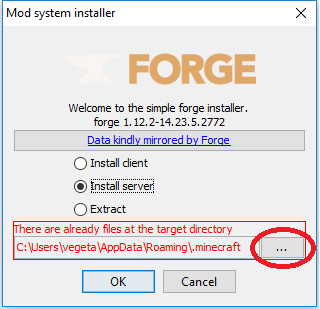
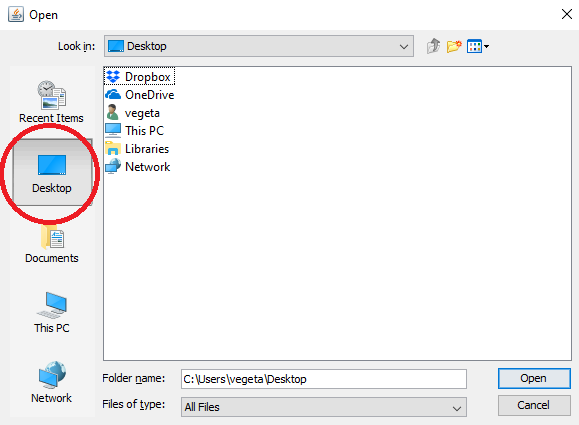
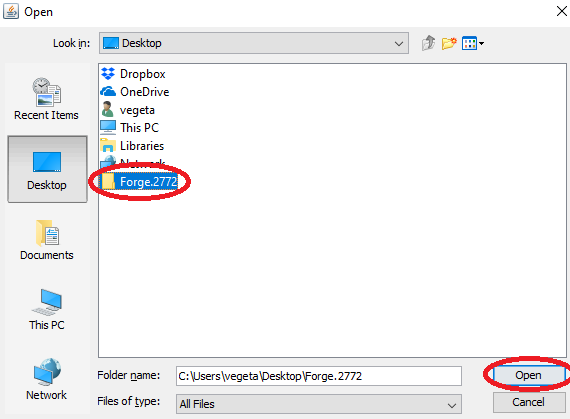
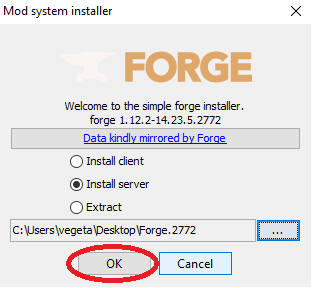
4. Select Install Server and click the box with “…”, click the desktop on the left and make a new folder called Forge.2772 and click Open and click OK
5. Go to the folder on your desktop Forge.2772, delete the minecraft_server.jar file and copy the forge-1.12.2-14.23.5.2772-universal.jar to ForgeMod.jar
Note – The ForgeMod.jar file is case sensitive, ForgeMod.jar is the only way it will work
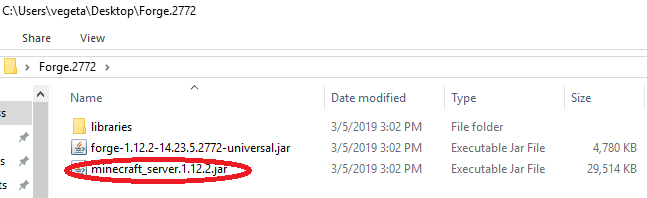

6. Once that is done, go to the servercraft control panel, stop your server and go in the file manager. Delete the ForgeMod.jar forge-1.12.2-14.23.5.2768-universal.jar files and the libraries folder
7. You can use the file manager to upload your files or use an FTP program, either way, you need to copy all the files and folder from your Forge.2772 on your desktop to your root folder on your server. With the file manager you can drag and drop files to upload them
8. Once done, you can start your server
9. You can verify in the console that you upgraded it correctly
DOWNLOAD MODS FOR PC
- Weapon
- Armor
- Furniture
- Decor
- Mobs
- Realism
- Cars
- Magic
- Lucky Blocks
List of Minecraft Mods. Below is the list of Minecraft Mods developed and modified by the Minecraft community.
The latest version is Minecraft 1.16.5 mods, Most popular versions are Minecraft 1.16.4 mods, Minecraft 1.15.2 mods, Minecraft 1.14.4 mods, Minecraft 1.12.2 mods, Minecraft 1.11.2 mods, Minecraft 1.10.2 mods, and Minecraft 1.7.10 mods.!
The post Download Starting Inventory Mod 1.11->1.8.9 (Items and Blocks) appeared first on 24hMinecraft | The Best Minecraft Mods, Mods, Resource Pack.





/fit-in/580x348/filters:format(webp)/english-betterindia/media/media_files/2026/08/04/1-2026-08-04-18-09-35.png)

/pic9729642.png)